
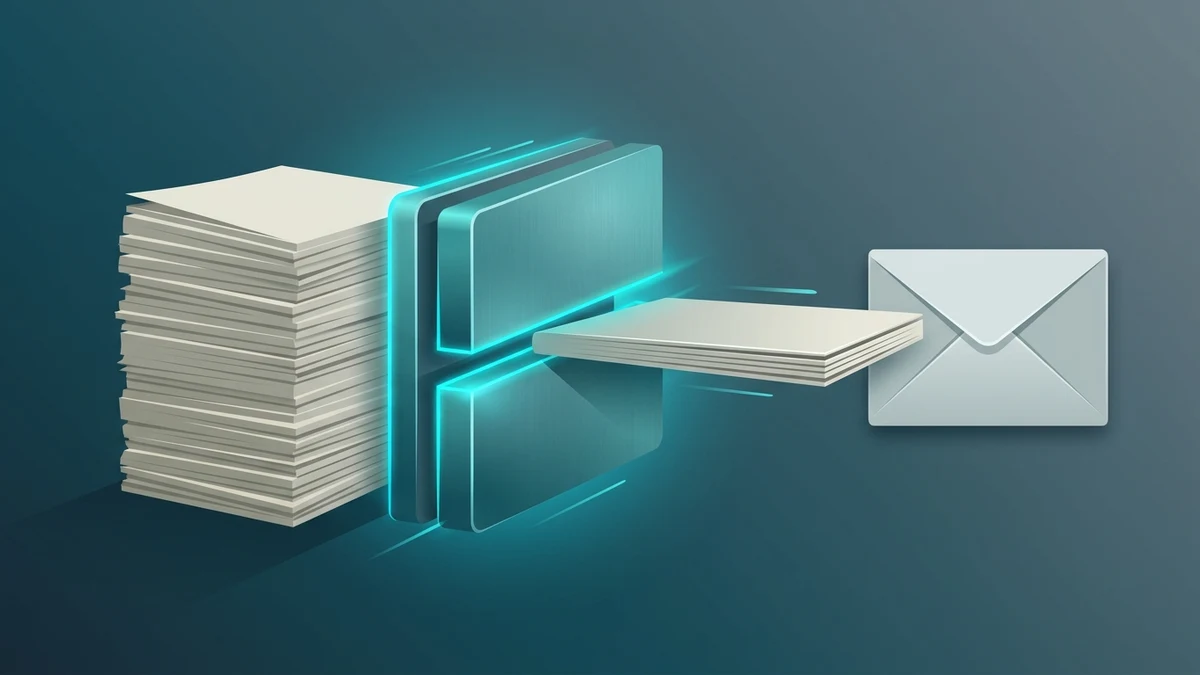
Nothing derails a busy afternoon faster than finishing a carefully assembled loan packet, academic portfolio, or signed client onboarding dossier—only to hit Send and receive an immediate mail bounce reading "Attachment exceeds maximum allowed size" or upload into a portal banner flashing "Maximum PDF size: 2 MB." Ten ordinary pages of printed text feel like they should weigh next to nothing, yet office scanners and raw slide decks regularly spit out monolithic 25 MB to 60 MB files that stall laptops and choke cellular transfers.
Knowing how to compress PDF online—and understanding what inside a PDF actually steals megabytes—lets you turn bloated multi-megabyte packets into crisp, portable documents in seconds without blurring fine print, breaking embedded forms, or erasing critical ink signatures.
Inside a Bloated PDF: Where Do All Those Megabytes Come From?
A Portable Document Format file behaves like a digital suitcase packing wildly different kinds of cargo together. Looking inside explains immediately why one 100-page PDF textbook weighs only 900 KB while a 6-page scanned rental lease balloons past 34 MB:
- Unoptimized Embedded Raster Scans & Camera Photos (The #1 Culprit): Every time a mobile app or office copier snaps a physical sheet of paper, it saves an enormous 300-to-600 DPI photograph inside the PDF stream—often in full 24-bit color even when the page only holds black printed ink on plain white paper! Five full-color camera photos easily consume 20+ MB all by themselves.
- Oversized Embedded Illustrations & Slide Graphics: Exporting presentation decks from design tools or keynote apps without downsampling often preserves raw 4000px photographic layers behind transparent vector shapes, leaving giant hidden bitmaps unseen beneath bullet text.
- Redundant Embedded Fonts & Incremental Revision History: Saving a file twenty times across legacy desktop PDF writers frequently appends incremental "undo patches" onto the tail of the binary stream instead of rewriting a clean condensed cross-reference tree, plus bundling multiple duplicate font subsets across merged appendices.
- Blank Pages & Unused Appendices: Scanning double-sided staples routinely introduces five completely empty noisy white sheets—each wasting half a megabyte encoding faint gray scanner dust.
Because pure digital vector text (words exported cleanly straight out of word processors) consumes mere kilobytes per page, learning how to compress PDF online cleanly means focusing intelligence on bloated raster streams, spare structural baggage, and redundant pages without destroying vector typography.
Step-by-Step Guide: Compress PDF Online Cleanly Using Pixdoca
Whether facing a strict Gmail attachment threshold or a tight immigration portal limit, follow this orderly browser checklist to cut megabytes safely:
Step 1: Trim Excess Pages First (Zero-Loss Reduction)
Before touching image compression at all, ask whether the recipient actually needs every page inside that 40-page packet:
- Got blank reverse-side scans or unwanted cover sheets mixed into the file? Drop the document quickly into Organize PDF, delete blank sheets cleanly, and confirm page sequence.
- Only submitting pages 12 through 18 of an annual financial handbook? Pull strictly those seven sheets cleanly out with Split PDF. Removing irrelevant pages achieves 100% lossless byte savings immediately!
Step 2: Run Clean PDF Compression
Open Compress PDF inside Pixdoca (accessible straight from the top navigation menu or left PDF workspace sidebar). Load your trimmed PDF and compress redundant structural weight and embedded bitmap density neatly. Inspect preview pages calmly—especially subtle signature lines, tabular dollar figures, and QR codes—and download your compact file directly to local storage with zero Pixdoca brand watermarks stamped across margins.
Step 3: Verify Compliance Against Strict Portal Rules
When dealing with strict automated intake systems (court e-filing, tax offices, university admissions):
- Check resulting bytes cleanly (
Properties/Get Info) to verify your file rests comfortably below the limit—aim for 10–15% headroom beneath tight ceilings (for example hitting 1.7 MB for a 2.0 MB limit) so kilobyte-vs-kibibyte (1000vs1024) math quirks never block submission. - Open the compressed output in a standalone viewer and zoom to 100% and 150% on key legal text paragraphs, stamps, and ink signatures to verify full readability.
Advanced Trick: Prepping Photo-Heavy PDFs From Scratch Without Bloat
Suppose your task starts not with an existing PDF, but with twelve physical paper receipts, architectural site snapshots, or photographed notebook pages sitting in your phone's camera roll. Converting twelve raw 4032x3024 mobile JPGs straight into a single PDF creates a monster 42 MB brick right out of the gate!
Prevent bloat upfront with Pixdoca's smart 2-minute photo-to-PDF recipe:
- Crop out messy wooden desk borders cleanly inside Crop Image so only paper fills each frame.
- Scale photo widths uniformly via Resize Image down to roughly 1400px–1600px on the longest edge (plenty sharp for crystal reading on 4K monitors and crisp office printouts!).
- Compress images cleanly through Compress Image around 75–82% quality (targeting ~120 KB–220 KB per page).
- Assemble neatly into one file using JPG to PDF.
Twelve clean document sheets built this way bind neatly into a razor-sharp 1.8 MB PDF instead of a crushing 42 MB brick—passing every corporate email filter and tight government portal effortlessly!
Knowing Common Email and Portal Size Ceilings
Keeping realistic target weights in mind helps teams size attachments right on the first try:
- Gmail, Outlook, and Standard Webmail: Allow ~20–25 MB before wrapping files into cloud drive links—yet many recipients using older Exchange corporate servers bounce anything above 10 MB. Targeting under 5–8 MB works universally without external download links that corporate security filters often block.
- Slack, Teams, and Collaboration Threads: Handle larger uploads gracefully, though smaller 1–3 MB specs preview almost instantaneously on co-workers' mobile phones while commuting.
- Government, Visa, HR, and Financial Portals: Commonly impose harsh caps of 1 MB, 2 MB, or 5 MB. Pre-scaling mobile scan pixels plus compressing keeps multi-page packets comfortably under 2 MB with legible ID numbers intact.
Avoiding Quality Disasters When Shrinking Sensitive Documents
Some documents demand careful inspection before firing off compressed exports:
- Medical Diagnostics, Blueprints, and Small-Font Financial Footnotes: Never crush tiny 6-point tabular footnotes or hair-thin engineering scale rulers aggressively without inspecting zoomed renders carefully first. If ultra-dense 80-page scans fail a tight 2 MB limit cleanly, check whether portals accept splitting into Part 1 and Part 2 packets cleanly inside Split PDF!
- Password-Encrypted Banking & Payroll PDFs: Encrypted PDFs sealed against modification refuse structural compression until authorized decryption removes restrictions cleanly. Note that Pixdoca's upcoming Unlock PDF and Protect PDF utilities are transparently marked Coming Soon rather than pretending unready features exist.
- Scanned Ink Signatures: Before wrapping final agreements compressed tightly, make sure electronic strokes signed via Sign PDF or handwritten blue ink remain dark and continuous without broken dotted gaps.
Pairing Compression With Other Essential PDF Steps
Seldom does shrinking sit completely alone inside a real document workflow. Notice how seamlessly Pixdoca's PDF Tools hub connects common cleanup steps:
- Need to bundle a signed contract PDF together with a compressed bank statement and cover letter before shrinking final payload? Stitch everything smoothly in Merge PDF first, arrange order cleanly in Organize PDF, fix any upside-down phone capture pages via Rotate PDF, stamp
"CONFIDENTIAL"across drafts via Watermark PDF, and run final byte trimming in Compress PDF. - Need quick social or presentation graphics pulled out of two key report charts rather than sending the whole PDF? Extract crisp frames seamlessly with PDF to JPG.
Every active tool lives calmly inside Pixdoca's clean dark workspace—accessible straight from the fixed left PDF sidebar rail so shifting between rotating, merging, splitting, signing, and compressing takes one click with zero interface clutter.
Digital Export vs Paper Scan: Understanding Why PDF Origin Changes Compression Behavior
Not all oversized PDFs respond identically to size reduction—recognizing how a document was born sets realistic compression expectations immediately:
- Illustrator, Figma, or PowerPoint Visual Decks: Graphic design exports often pack dozens of overlapping semi-transparent photo textures at massive 6000px native canvas size behind small vector boxes. Compressing embedded raster payloads trims dramatic percentages smoothly while keeping vector slide headlines needle-sharp across 4K projectors.
- Mobile Scanning App Captures: Smartphone document scanners capture high-contrast JPEG page sheets wrapped into PDF boxes; tuning embedded raster bitmaps cleanly slashes multi-page bundles by fifty to seventy percent without destroying dark blue signatures or typed receipt totals.
- Software-Generated Text Invoices (Already 85 KB): A two-page PDF bill rendered strictly with vector Type1/TrueType fonts and one tiny company logo carries almost zero image weight left to drop—trying to squash an already clean
85 KBtext invoice down further yields minimal extra reduction simply because font glyphs already pack ultra-efficiently!
Legal Archiving & Searchable OCR Habits Alongside Compressed PDFs
Real estate brokerages, accounting practices, and academic records departments frequently balance small email delivery against long-term regulatory retention requirements:
- Always preserve the clean uncompressed original master inside compliance archives: Regulatory tax audits and property title registries occasionally inspect stamped wet-ink seals at full native resolution years later. Store raw masters cleanly inside immutable yearly archive storage while emailing freshly shrunk copies via Compress PDF.
- Verify searchable text selection stays intact: On digitally authored contracts, drag your cursor lightly across key clause sentences in your downloaded compressed PDF to ensure selectable vector typography copies accurately into text editors without accidentally converting pages to flat unsearchable images.
- Inspect barcode, QR code, and tax ID sharpness: Shipping manifests, airline customs declarations, and electronic municipal payment slips contain dense two-dimensional QR blocks and fine EAN-13 bars. Zoom to 150% before hitting Send confirming clean black-and-white contrast margins circle every barcode stripe crisply.
Three Quick Fixes When a Portal Still Flags a Shrunken Multi-Page Packet
Occasionally, a strict 1.5 MB portal threshold rejects even a well-compressed forty-page construction permit binder packed with site photographs. Instead of crushing photos into unreadable blur, try three smarter structural workarounds:
- Remove redundant title covers and appendices: Strip blank covers, legal boilerplate brochures, and duplicate invoices cleanly inside Organize PDF so only mandatory signature sheets transmit.
- Break oversized chapters cleanly into Part A and Part B: Whenever intake portals provide a second optional
"Additional Supporting Documents"box, divide thick bundles calmly using Split PDF rather than degrading readability below 50% clarity. - Pre-build photo addendums responsibly: Resize field inspection site photography to crisp
1200pxframes first via Resize Image, pass cleanly through Compress Image, and assemble via JPG to PDF—yielding crisp visual clarity inside tight megabyte rules every time.
Setting Team-Wide PDF Delivery Standards That Save Bandwidth Daily
Even inside companies running modern cloud storage suites, emailing unshrunk twenty-megabyte slide exports quietly wastes hours across distributed teams—filling mobile device storage caches, stalling VPN synchronization at remote home offices, and clogging shared ticket attachments inside customer support desks. Establishing three clean internal habits eliminates PDF bloat organization-wide:
- Always run outgoing scanned packets through Compress PDF before sending external proposals, signed vendor agreements, or real-estate disclosures, keeping routine attachments neatly under
2 MBto4 MB. - Switch internal spreadsheets and text policies to direct PDF exports rather than scanning physical printouts whenever clean source spreadsheets remain editable—clean digital text packs fifty pages into half a megabyte naturally!
- Strip expired slide appendices with Organize PDF: Dropping twenty outdated fallback pricing slides from the tail of a sales pitch before compressing saves download time and keeps clients focused cleanly on relevant pages.
Checking Embedded Bookmarks, Signature Fields, and Margins Before Portal Submission
Before firing any shrunken PDF into a municipal tax registry or corporate procurement queue, run one thirty-second verification sweep: scroll through the entire file confirming top page headers and page numbers remain comfortably clear of edges, verify that interactive link text inside references stays readable at standard zoom levels, test opening the compressed attachment smoothly inside a second standalone PDF reader tab, and ensure filenames contain clean underscores or hyphens without special punctuation. Taking half a minute upfront eliminates embarrassing bounce emails asking teams to resend unreadable documentation days later.
Clean PDF Hygiene Saves Time Every Week
Mastering how to compress PDF online stops attachment anxiety cold. Keep high-resolution originals archived internally for legal retention, trim blank separator pages routinely, size mobile scan images sensibly before PDF binding, and inspect 100% zoomed text sharpness on every final export. Ready to cut your next bloated report down to size right inside your browser? Launch Compress PDF, explore the full PDF Tools Workspace, or check additional troubleshooting checklists inside the Pixdoca FAQ.